Last updated:
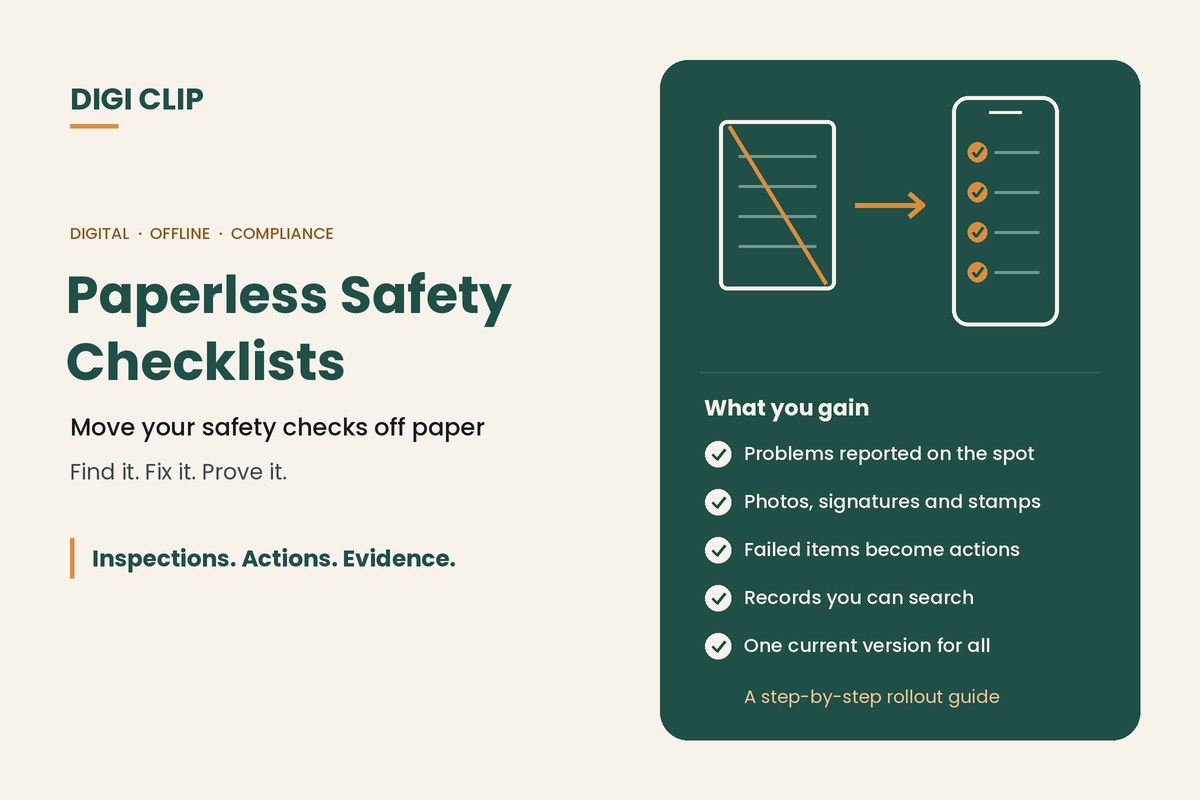
Paperless safety checklists are safety checks completed on a phone, tablet or computer instead of paper forms. Answers, photos and signatures are captured digitally, stored in the cloud, and failed items can be sent straight to the person responsible for fixing them.
Paperless Safety Checklists: How Digital Checklists Improve Workplace Safety and Compliance
Paper checklists have a long history in Australian workplaces, but they come with familiar problems: lost forms, unreadable handwriting, defects that sit in a folder, and hours spent chasing records before an audit. Digital checklists fix most of these. This guide covers what paperless checklists are, how they compare with paper, the features that matter, and a step-by-step plan for moving your checks online.
Key points
- Digital checklists capture photos, signatures and location and time stamps with each check.
- Failed items can create actions automatically, so problems don’t sit on a form.
- Records are stored centrally and can be searched and reported on.
- Offline use matters for remote sites and vehicles.
- Start with one or two high-use checklists, then roll out.
The problems with paper checklists
- Slow: a defect on a paper form may not reach the person who can fix it for days.
- Hard to read: handwriting, rain and coffee stains make records unreliable.
- No evidence: a tick doesn’t show what was actually seen.
- Easily lost: forms go missing, often when you need them most.
- Hard to analyse: spotting trends means typing up forms or flicking through folders.
- Hard to update: changing a checklist means reprinting and replacing every copy.
Benefits of digital safety checklists
Faster reporting
Checks are submitted on the spot, so managers and maintenance teams see problems straight away.
Better evidence
Photos, comments and signatures show exactly what was found and who checked it. In DIGI CLIP, each form is also location- and time-stamped.
Problems get fixed
Failed items can become actions with an owner and due date, and stay open until they are closed out with evidence.
Records you can find
Everything is stored centrally and can be searched by site, asset, person or date, which makes audits and incident investigations far easier.
Consistency
Everyone uses the latest version of each checklist, and required fields stop important items being skipped.
Paper vs digital at a glance
| What matters | Paper | Digital |
|---|---|---|
| Getting problems to the right person | When the form is handed in | As soon as the check is submitted |
| Evidence | Ticks and handwriting | Photos, comments, signatures, location and time stamps |
| Follow-up | Relies on someone reading the form | Failed items become assigned actions |
| Finding records | Search folders and boxes | Search and export |
| Updating the checklist | Reprint every copy | Update once, everyone gets it |
| No signal | Not a problem | Needs an app that works offline |
Features to look for
- Works offline, with forms submitted with a tap once back online
- Easy checklist building, so you can create and update your own forms
- Photos, signatures and smart fields that respond to answers
- Automatic actions from failed items, with owners, due dates and escalation
- Recurring checks with reminders when a check is due
- Dashboards and exports to PDF and Excel for reporting and audits
- Simple for workers, with large buttons and clear pass and fail options
Comparing apps? See our guide to the best inspection software and mobile apps.
How to implement digital checklists
- List your current checks. Gather your paper forms and spreadsheets and decide which to move first, usually the most used or highest risk.
- Improve before you digitise. Remove items nobody uses, clarify vague ones and decide which answers should create an action.
- Build the digital checklists. Recreate them in your app, or start from templates, adding photos and required fields where evidence matters.
- Set up the follow-up. Decide who receives actions, due dates by risk and how overdue actions are escalated.
- Pilot with one team. Trial with a small group, get feedback and fix anything that slows people down.
- Roll out and review. Train everyone, retire the paper versions, and review completed checks and actions regularly.
Moving from spreadsheets? See our guide to migrating from Excel to digital checklists.
Automating the follow-up
The biggest gain from digital checklists is automation after the check:
- Automatic actions: in DIGI CLIP, smart fields create an action when a “No”, “Not OK” or “At Risk” answer is selected.
- Escalation: overdue actions trigger alert emails, so they don’t sit quietly open.
- Verified close-out: actions are closed with evidence, such as a photo of the fix.
- Reminders: recurring checks prompt people when they are due.
All of this flows into the Action Log, giving managers one place to see what is open, overdue and closed.
Illustrative scenario: a cleaning company goes paperless
A commercial cleaning company moves its site safety checklist from paper to DIGI CLIP. A cleaner at a shopping centre marks a damaged power lead as “Not OK” and adds a photo, which automatically creates an action for the site supervisor. The lead is tagged out and replaced the same day, and the action is closed out with a photo, where previously the paper form would have reached the office at the end of the week.
This scenario is illustrative. It shows how a business could use DIGI CLIP and is not an account of a specific customer.
Start with ready-made templates in the DIGI CLIP Form Library, or see our guide to building safety checklists.
If you're choosing software, our guide to inspection checklist apps covers offline use, audit trails and evaluation criteria.
Go Paperless With DIGI CLIP
Move your safety checklists onto phones and tablets and see failed items land in the Action Log, ready to fix and prove.
Start Your 14-Day Free TrialNo credit card required. Set up in minutes.
Frequently asked questions
What are paperless safety checklists?
Paperless safety checklists are safety checks completed on a phone, tablet or computer instead of paper forms. Answers, photos and signatures are captured digitally, stored in the cloud, and failed items can be sent straight to the person responsible for fixing them.
Are digital checklists accepted for WHS compliance?
Yes. WHS laws focus on managing risks and keeping appropriate records, not on paper specifically. What matters is that records are accurate, secure and can be produced when needed.
Do digital checklists work without internet?
Some do. DIGI CLIP checklists can be completed without coverage and submitted with a tap once the device is back online.
How long does it take to move to digital checklists?
It depends on how many checklists you have and how complex they are. Starting with one or two high-use checklists lets you test the process with your team before moving the rest across.
Can we keep our existing checklists?
Yes. Most businesses rebuild their existing checklists digitally, usually improving them along the way, or start from templates and adapt them.
What happens when an item fails on a digital checklist?
In DIGI CLIP, smart fields can create an action automatically when a “No”, “Not OK” or “At Risk” answer is selected. The action goes to the Action Log, where it is assigned, tracked and closed out with evidence.
About DIGI CLIP Mobile Forms
DIGI CLIP is an Australian-built mobile checklist and inspection platform. Inspections. Actions. Evidence. Teams complete checks on a phone or tablet, turn defects into assigned actions, and keep the proof that each one was fixed and verified.
See our Form Library for ready-made templates.