Last updated:
Form validation is how a mobile form makes sure the information it collects is complete, accurate and trustworthy before it’s relied on. It includes clear questions, set response options, required fields, photos, signatures, declarations, and time and location stamps that show when and where the form was completed.
Valid Safety and Compliance Forms: Data Quality, Error Prevention and Evidence
A checklist is only as useful as the information in it. Blank answers, vague comments, missing signatures and forms filled in after the fact all weaken the record, and can leave a business exposed when it needs to show what was checked. This guide covers what makes a safety or compliance form valid, the common data quality problems, and how mobile forms help prevent errors and strengthen evidence.
Key points
- Valid forms are complete, accurate, attributable and completed at the time of the check.
- Set response options and required fields reduce errors and gaps.
- Photos, signatures, and time and location stamps strengthen evidence.
- A declaration confirms the person stands behind what they recorded.
- Follow-up records show problems were actually fixed.
What makes a form valid
| Quality | What it means |
|---|---|
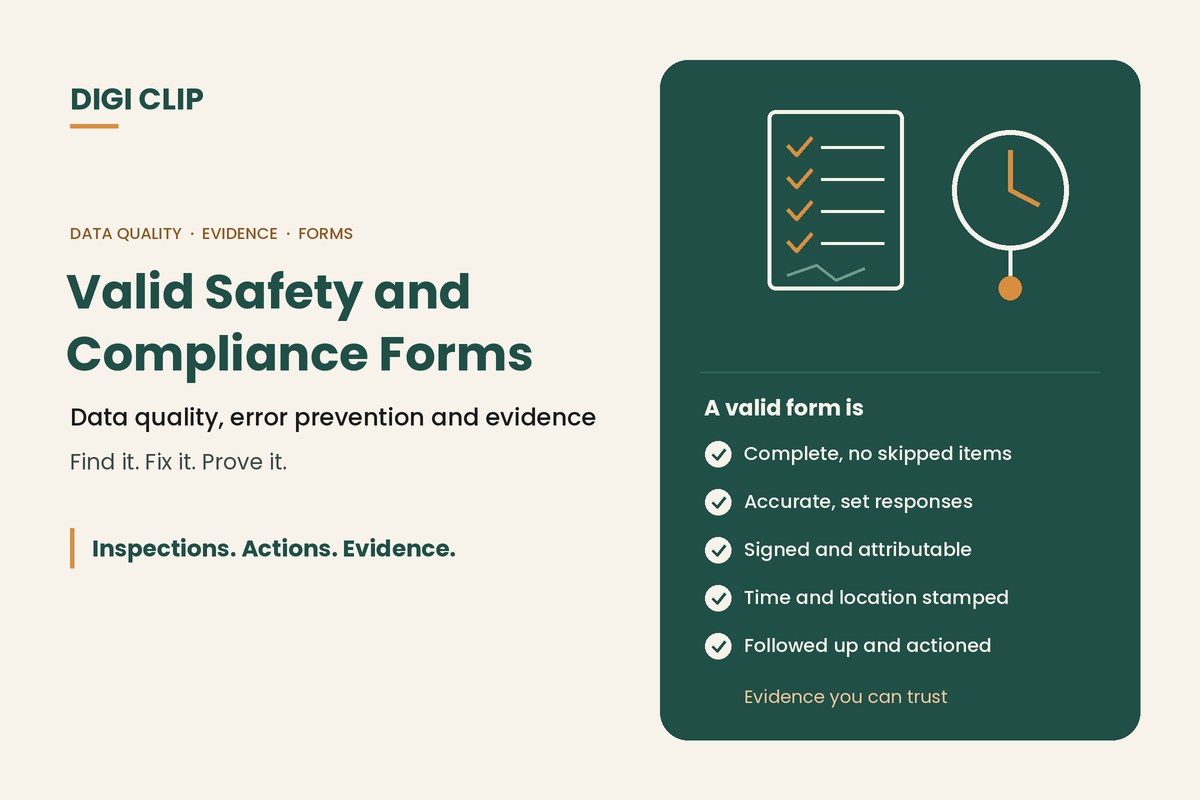
| Complete | Every relevant question answered, with comments and photos where something failed |
| Accurate | Answers reflect what was actually seen, using clear response options |
| Attributable | It’s clear who completed the form, with a name and signature |
| Contemporaneous | Completed at the time and place of the check, not later from memory |
| Actioned | Problems found are followed up and the fix is recorded |
Common data quality problems
- Blank or skipped items: questions left unanswered on paper forms.
- Pencil whipping: every box ticked without checking, sometimes for several days at once.
- Vague comments: “Needs fixing” with no detail on what, where or how bad.
- Illegible handwriting: records nobody can read later.
- Missing signatures: no way to show who completed the check.
- Backdated forms: filled in after the fact to cover a gap.
How mobile forms prevent errors
- Set response options: Yes / No / N/A instead of free text, so answers are consistent.
- Required fields: the form can’t be submitted with key items left blank.
- Smart fields: a “No” or “Not OK” answer prompts for a comment or photo and creates a follow-up action.
- Photos: show exactly what was found.
- Time and location stamps: show when and where the form was completed.
- Signatures and declarations: confirm who completed the form and that they stand behind it.
- Current versions only: everyone uses the latest form, not an old photocopy.
Designing forms for good data
- Ask one thing per question. “Brakes and lights OK?” can’t be answered clearly. Split it.
- Use set responses. Yes / No / N/A, ratings or pick lists rather than free text where possible.
- Make key items required. Don’t let critical safety items be skipped.
- Ask for evidence on fails. Require a comment and photo when an item fails.
- Include a declaration. Have the person confirm the information is accurate and complete to the best of their knowledge, and sign.
- Review the data. Look for forms completed too quickly or always marked all-clear, and follow up.
Valid forms with DIGI CLIP
DIGI CLIP forms use Yes / No / N/A responses with photo and comment fields, smart fields and digital signatures, and templates include instructions and a declaration. Each submitted form is location- and time-stamped. When an item fails, an action is created in the Action Log, and the close-out is recorded with evidence, so the record shows both the problem and the fix.
Illustrative scenario: a suspicious pattern
A fleet manager reviewing pre-start records in DIGI CLIP notices one vehicle’s checks are always completed in under a minute and never fail an item. The time stamps show the checks were done at the depot office, not at the vehicle. A conversation and a toolbox talk follow, and the next week’s checks are completed at the vehicle, including a failed tail light that is fixed the same day.
This scenario is illustrative. It shows how a business could use DIGI CLIP and is not an account of a specific customer.
See also our guides to pre-start books vs digital and mobile forms for business.
Build Forms You Can Trust
Put validated checklists on your team’s phones and see problems land in the Action Log, ready to fix and prove.
Start Your 14-Day Free TrialNo credit card required. Set up in minutes.
Frequently asked questions
What makes a safety form valid?
It’s complete, accurate, attributable to the person who completed it, completed at the time of the check, and followed up where problems were found.
How do mobile forms improve data quality?
Set response options, required fields, smart fields, photos, signatures, and time and location stamps reduce gaps and errors and make records easier to trust.
What is pencil whipping?
Ticking every item on a checklist without actually checking it. Reviewing completion times and patterns, and requiring photos on key items, helps detect and discourage it.
Why include a declaration on a form?
A declaration has the person confirm the information is accurate and complete to the best of their knowledge, which reinforces accountability for what they recorded.
Are time and location stamps useful as evidence?
Yes. They show when and where a form was completed, which helps confirm checks were done at the right place and time.
Do DIGI CLIP forms include time and location stamps?
Yes. Every submitted DIGI CLIP form is location- and time-stamped, alongside photos, comments and digital signatures.
About DIGI CLIP Mobile Forms
DIGI CLIP is an Australian-built mobile checklist and inspection platform. Inspections. Actions. Evidence. Teams complete checks on a phone or tablet, turn defects into assigned actions, and keep the proof that each one was fixed and verified.
See our Form Library for ready-made templates.